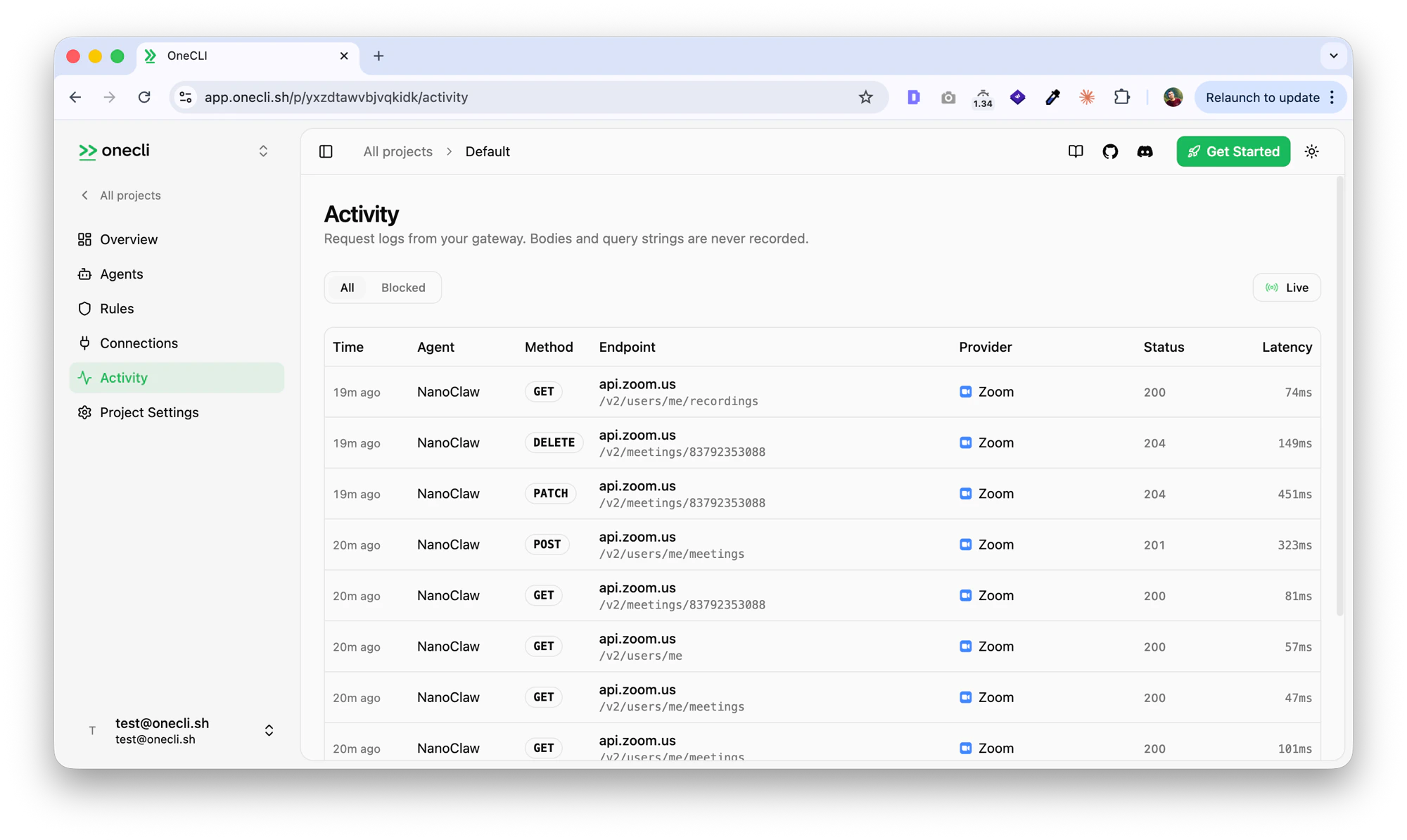
OneCLI connects AI agents to Zoom through Zoom’s OAuth flow. Agents can list and manage meetings, access cloud recordings, and view user profile information. The gateway injects OAuth credentials into requests to the Zoom API automatically.This is useful for scheduling agents, meeting summarizers, or any agent that needs to interact with your Zoom account.
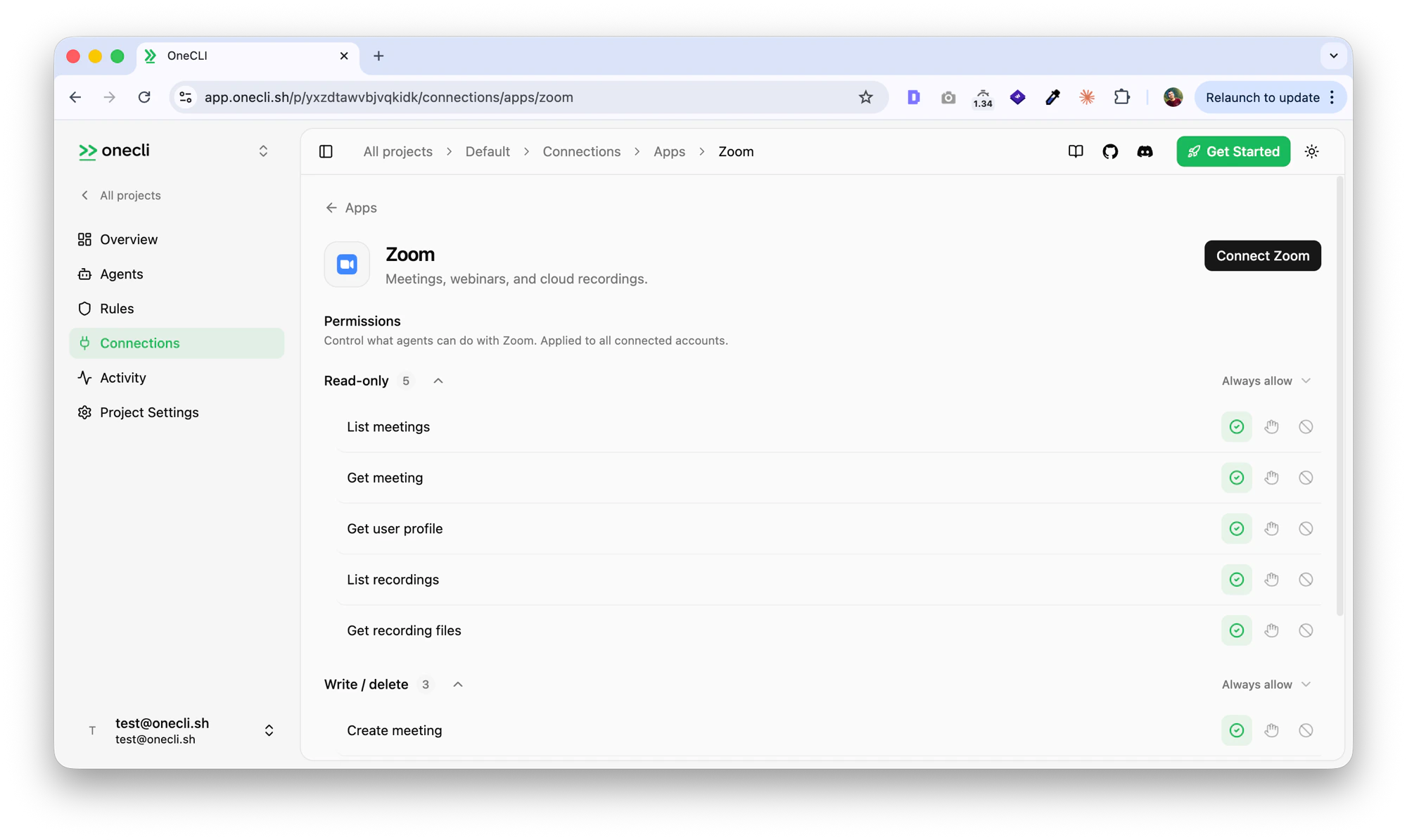
Open the OneCLI dashboard and navigate to Connections > Zoom.
Zoom connection page with permissions
2
Authorize
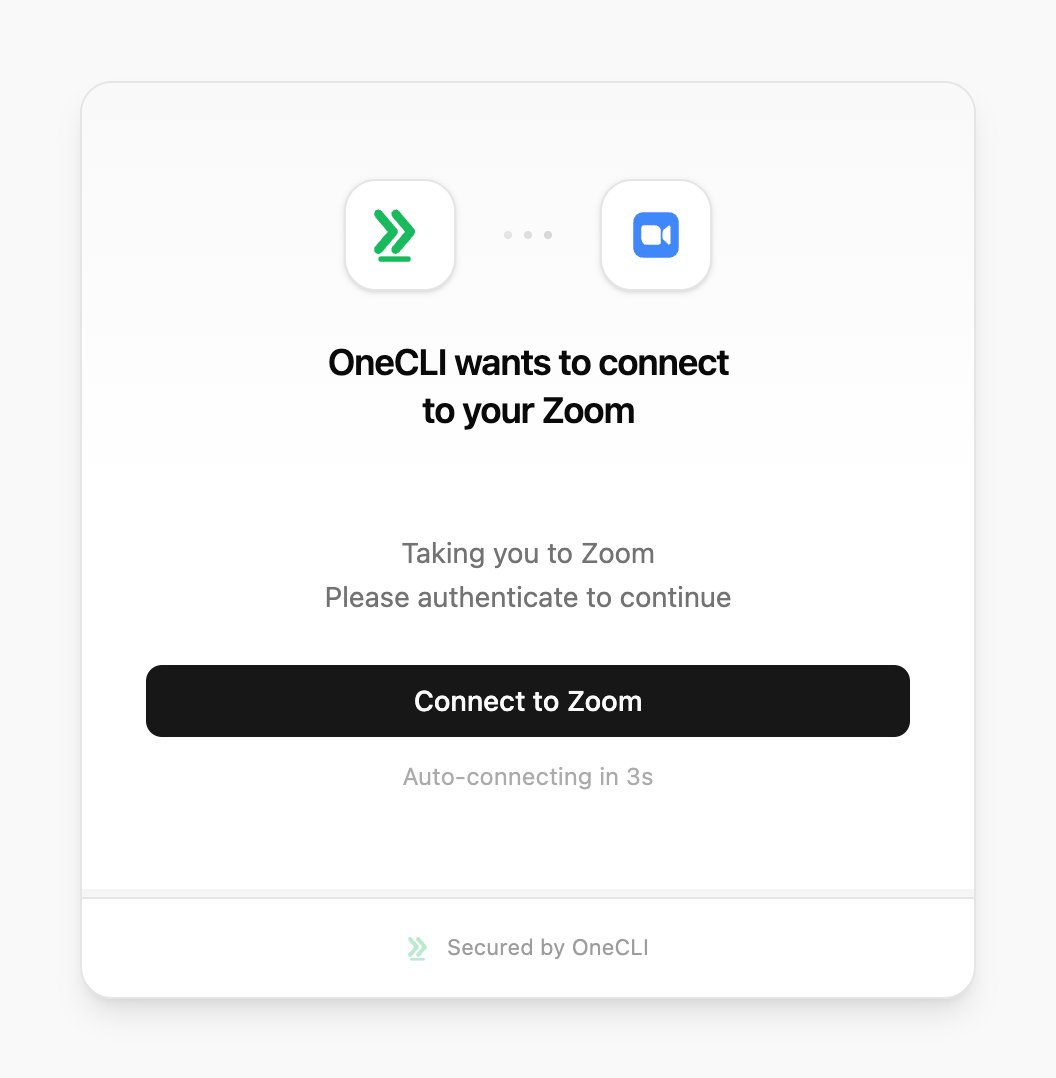
Click Connect Zoom. You’ll be redirected to Zoom to authorize OneCLI. Review the requested permissions and click Allow.
The Zoom connect window on OneCLI Cloud.
OneCLI requests read access to your meetings, recordings, and profile by default. Write access (create, update, delete meetings) is optional and only requested if your agent needs meeting management capabilities.
3
Verify
After authorization, you’ll be redirected back to the OneCLI dashboard. The Zoom connection will show as Connected with your Zoom email address.
Skip this section on OneCLI Cloud. It’s only for self-hosted OneCLI without ZOOM_CLIENT_ID and ZOOM_CLIENT_SECRET set, or if you want your own company name on Zoom’s consent screen.
1. Create the Zoom app
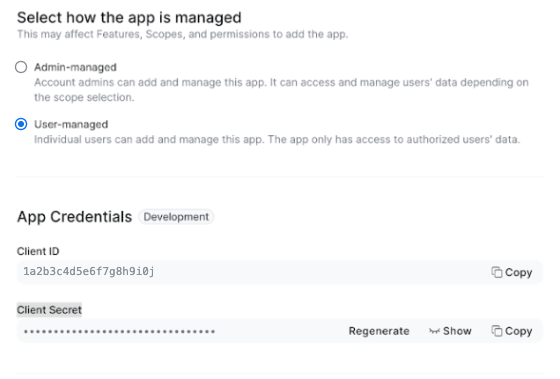
In the Zoom App Marketplace, open Develop > Build App, choose General App, and select Create. Under Select how the app is managed, choose User-managed.
Choose User-managed. Your Client ID and Client Secret are under App Credentials.
2. Add the redirect URL
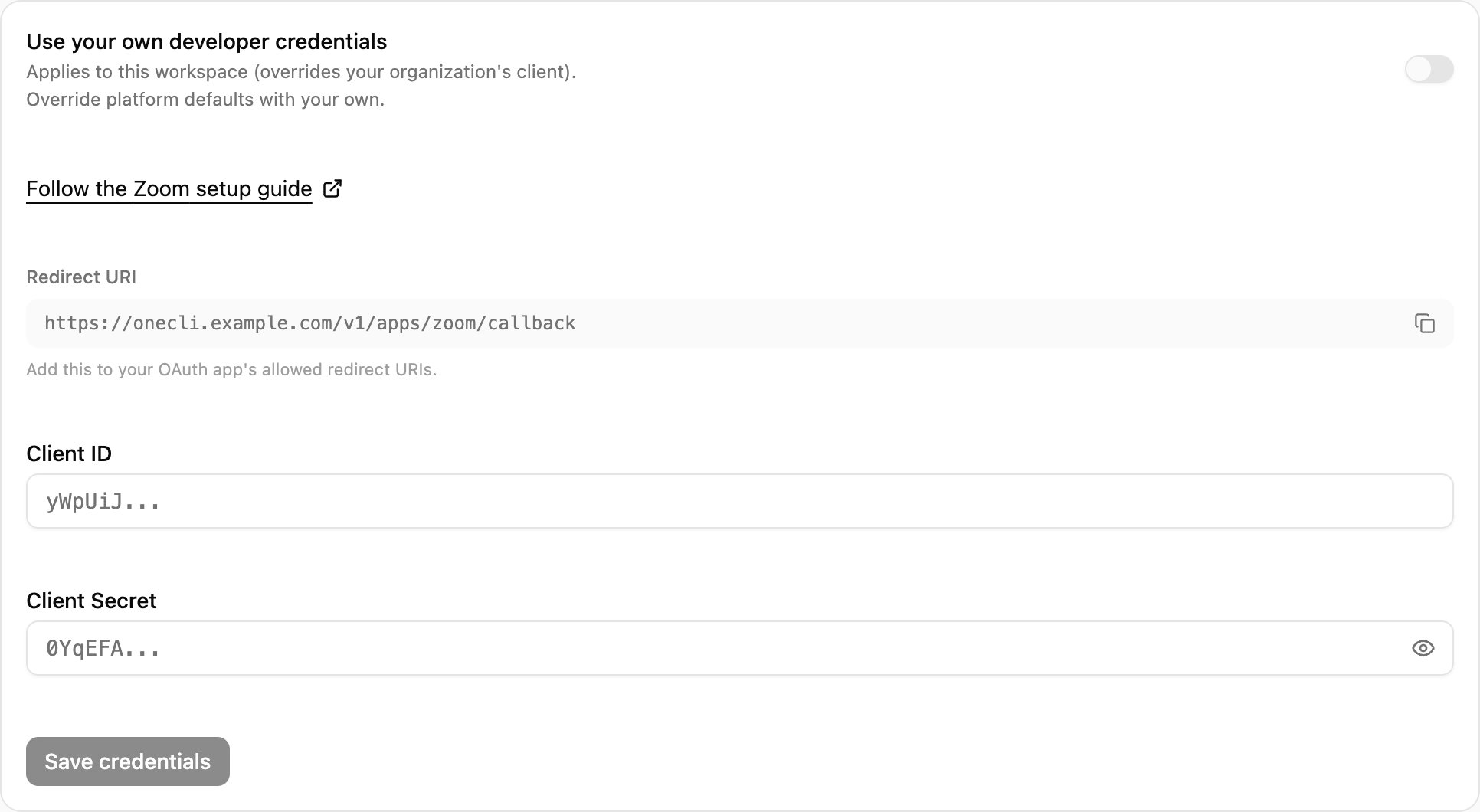
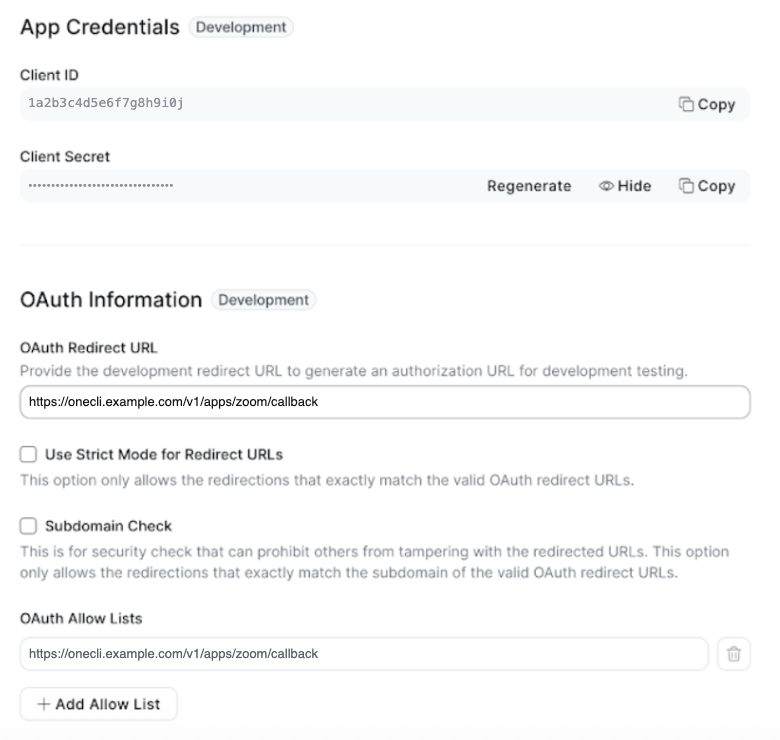
In OneCLI, open Connections > Zoom > Custom credentials and copy the Redirect URI. In Zoom, open Basic Information > OAuth Information, paste it into OAuth Redirect URL, and add it to the OAuth Allow List too.
Copy the Redirect URI from Custom credentials in OneCLI.
The OneCLI Redirect URI in both OAuth Redirect URL and OAuth Allow Lists.
3. Add the scopes
Open Scopes > Add Scopes and add:user:read:user, meeting:read:list_meetings, meeting:read:meeting, meeting:write:meeting, meeting:update:meeting, meeting:delete:meeting, cloud_recording:read:list_user_recordings, cloud_recording:read:list_recording_files
4. Connect with your app
On Basic Information, copy the Client ID and Client Secret. Paste both into Connections > Zoom > Custom credentials, select Save & Connect, and click Allow in Zoom.
Access is per agent: grant the connection to each agent that needs it, choosing per tool what runs freely, what needs human approval, and what stays blocked — a read-only agent is a single grant. Organization rules add guardrails on top, like rate limits and blanket blocks. Everything is checked before credential injection, so a blocked request never reaches the Zoom API.
Open the OneCLI dashboard, navigate to Connections > Zoom, and click Disconnect. This revokes the stored OAuth token and removes the connection from your OneCLI account.
2
Revoke from Zoom (optional)
To fully revoke access, go to the Zoom App Marketplace > Manage > Installed Apps, find OneCLI, and click Uninstall. This ensures OneCLI can no longer access your Zoom account even if you reconnect later without re-authorizing.
What happens when you disconnect
OneCLI immediately deletes your stored OAuth tokens (access and refresh tokens)
Any agents using the Zoom connection will receive authorization errors
No Zoom data is retained by OneCLI after disconnection
Your Zoom meetings, recordings, and account are not affected
OneCLI only stores your OAuth tokens (encrypted with AES-256) and basic profile metadata (name and email) used to display the connection status. No meeting content, recording data, or personal information is stored.
Do I need a paid Zoom account?
No. The integration works with Free, Pro, and Business Zoom accounts. Some features like cloud recordings may require a Zoom plan that supports them.
Can I limit what agents are allowed to do?
Yes. Grant the Zoom connection per agent with per-tool access — for example, allow reading meetings while blocking create and delete. Organization rules can add guardrails on top.
What happens if my Zoom token expires?
OneCLI automatically refreshes expired tokens using the stored refresh token. No action is needed on your part. If a refresh fails, disconnect and reconnect Zoom from the dashboard.
Will disconnecting OneCLI affect my Zoom account?
No. Disconnecting only removes the OAuth tokens stored in OneCLI. Your Zoom meetings, recordings, and account settings are not modified or deleted.